World Time Timezone
English
Français
Deutsch
Español
日本語
繁體
简体
Português
Italiano
Русский
World Time,Time, Timezone,World Timezone, Clock
Area
North America
Anguilla
Antigua and Barbuda
Bahamas
Barbados
Belize
Bermuda
British Virgin Islands
Canada
Cayman Islands
Costa Rica
Cuba
Curacao
Dominica
Dominican Republic
El Salvador
Grenada
Guadeloupe
Guam
Guatemala
Honduras
Jamaica
Mexico
Montserrat
Nicaragua
Northern Mariana Islands
Panama
Puerto Rico
Saint Kitts and Nevis
Saint Lucia
Saint Pierre and Miquelon
Saint Vincent and Grenadines
Turks and Caicos Islands
USA
US Virgin Islands
South America
Argentina
Aruba
Bolivia
Brazil
Chile
Colombia
Ecuador
Falkland Islands
French Guiana
Guyana
Paraguay
Peru
Uruguay
VenezuPela
Venezuela
Europe
Albania
Andorra
Armenia
Austria
Belarus
Belgium
Bosnia
Bulgaria
Croatia
Cyprus
Czech Republic
Denmark
Estonia
Faroe Islands
Finland
France
Germany
Gibraltar
Greece
Hungary
Iceland
Ireland
Italy
Kosovo
Latvia
Liechtenstein
Lithuania
Luxembourg
Republic of Macedonia
Malta
Moldova
Monaco
Montenegro
Netherlands
Norway
Poland
Portugal
Romania
Russia
San Marino
Serbia
Slovakia
Slovenia
Spain
Sweden
Switzerland
Turkey
UK
Ukraine
Vatican City State
Australia Pacific
American Samoa
Australia
Cocos Islands
Cook Islands
Fiji
French Polynesia
Kiribati
Marshall Islands
Micronesia
Nauru
New Zealand
Niue
Norfolk Island
Palau
Papua New Guinea
Pitcairn Islands
Solomon Islands
Tonga
Tuvalu
Vanuatu
Wallis and Futuna
Asia
Afghanistan
Azerbaijan
Bahrain
Bangladesh
Bhutan
Brunei
Cambodia
China
Gaza Strip
Georgia
Hong Kong
India
Indonesia
Iran
Iraq
Israel
Japan
Jordan
Kazakstan
Kuwait
Kyrgyzstan
Laos
Lebanon
Macau
Malaysia
Mongolia
Myanmar
Nepal
North Korea
Oman
Pakistan
Philippines
Qatar
Saudi Arabia
Singapore
South Korea
Sri Lanka
Syria
Taiwan
Tajikistan
Thailand
Timor
Turkmenistan
United Arab Emirates
Uzbekistan
Vietnam
West Bank
Yemen
Africa
Algeria
Angola
Benin
Botswana
Burkina Faso
Burundi
Cameroon
Cape Verde
Central African Republic
Chad
Comoros
Congo
Democratic Republic of the Congo
Cote dIvoire Ivory Coast
Djibouti
Egypt
Equatorial Guinea
Eritrea
Ethiopia
Gabon
Gambia
Ghana
Kenya
Lesotho
Liberia
Libya
Madagascar
Malawi
Mali
Mauritania
Mauritius
Mayotte
Morocco
Mozambique
Namibia
Niger
Nigeria
Reunion French
Rwanda
Saint Helena
Sao Tome and Principe
Senegal
Seychelles
Sierra Leone
Somalia
South Africa
Sudan
Swaziland
Tanzania
Togo
Tunisia
Uganda
Western Sahara
Zambia
Zimbabwe
Foochow World Time,Time, Timezone,World Timezone, Clock
Standard time zone:
UTC/GMT+8
Daylight saving time:
Current time zone offset
Current time zone offset:
UTC/GMT8
Install Free Date Time Clock Widget and Tool!
Just press copy button and paste into your blog or website.
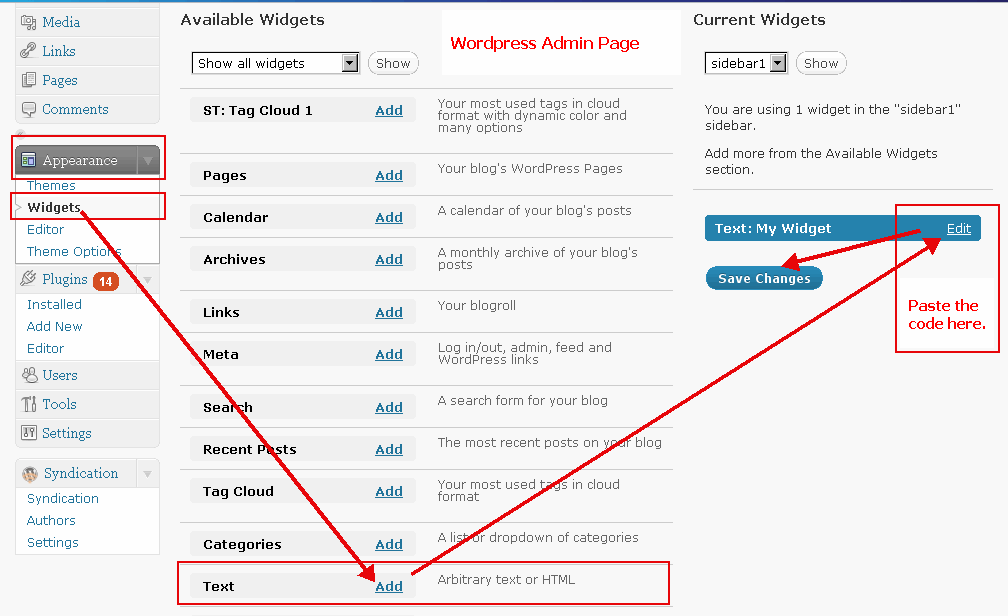
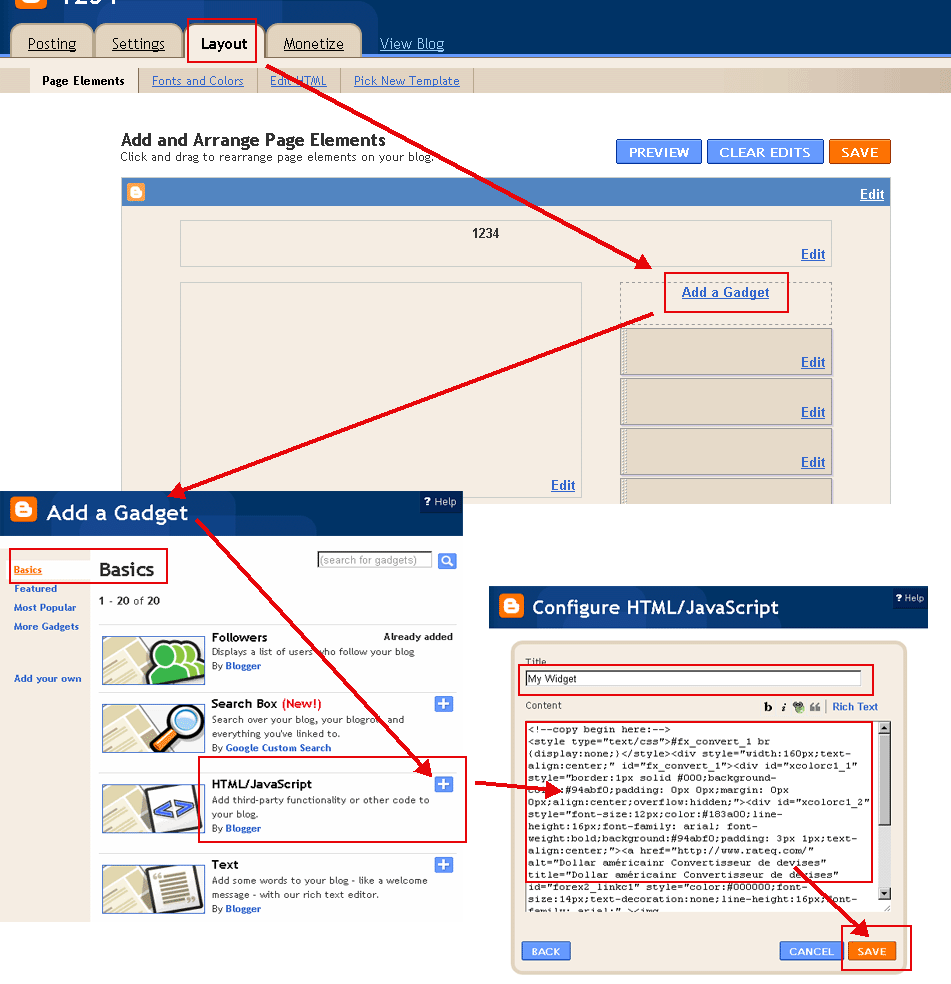
(Please switch to 'HTML' mode when posting into your blog. Examples:
WordPress Example
,
Blogger Example
)
Select Color(
?
):
Font Color(
?
):
Select Date Format:
May 21 2018 10:23:39 AM
21 May 2018 10:23:39 AM
5/21/2018 10:23:39 AM
21/5/2018 10:23:39 AM
2018/5/21 10:23:39 AM
2018-5-21 10:23:39 AM
May 21 2018 Monday 10:23:39 AM
21 May 2018 Monday 10:23:39 AM
5/21/2018 Monday 10:23:39 AM
21/5/2018 Monday 10:23:39 AM
2018/5/21 Monday 10:23:39 AM
2018-5-21 Monday 10:23:39 AM
2018 5 21 Monday 10:23:39 AM
Monday, May 21 2018 10:23:39 AM
Monday, 21 May 2018 10:23:39 AM
Monday May 21 2018 10:23:39 AM
Monday 21 May 2018 10:23:39 AM
Foochow Time
Copy to Clipboard
<!--copy begin here:--> <style type="text/css">#fx_convert_1 br {display:none;}</style><div style="width:210px;text-align:center;" id="fx_time_1"><div id="xcolorc1_1" style="border:1px solid #000;background-color:#94abf0;padding: 0px 0px;margin: 0px 0px;align:center;overflow:hidden;"><div id="xcolorc1_2" style="font-size:12px;color:#183a00;line-height:16px;font-family: arial; font-weight:bold;background:#94abf0;padding: 3px 1px;text-align:center;"><a href="http://timeq.org/Foochow" alt="Foochow Time" title="Foochow Time" id="xtime_link1" style="color:#111111;font-size:14px;text-decoration:none;line-height:16px;font-family: arial;" >Foochow Time</a></div><div id="clockusFoochow1" style="color:#111111;font-size: 1em;font-family: arial; font-weight:bold"></div><script src="http://timeq.org/z.php?z=Etc/GMT+8&id=clockusFoochow1&t=1"></script></div></div> <!--copy end here:-->
Select Color(
?
):
Calendar
<<
>>
Su
Mo
Th
We
Tu
Fr
Sa
Calendar|Time
Copy to Clipboard
<!--copy begin here:--> <style type="text/css">#mort_cal_1 br {display:none;} #calendar123 td.onToday{color:#ff0000;}</style><div style="width: 160px;text-align:center;"><div style="border:1px solid #000;background-color:#fefefe;color:#333333;padding: 0px 0px;margin: 0px 0px;align:center;text-align:center;overflow:hidden;"><div id="xcolorcs1_1" style="font-size:12px;color:#173a00;line-height:16px;font-family: arial; font-weight:bold;background:#94abf0;padding: 3px 1px;text-align:center;"><a href="http://timeq.org/" alt="Calendar|Time" title="Calendar|Time" id="gooddaycal_link" style="color:#000000;font-size:14px;text-decoration:none;line-height:16px;font-family: arial;" ><img src="http://timeq.org/day.gif" border="0" style="margin:0;padding:0;border:0;" />Calendar</a> </div><DIV style="font-size:16px;"><DIV id=calendar123prev style="float:left;cursor:pointer;padding-left:5px;"><<</DIV><DIV id=calendar123next style="float:right;cursor:pointer;padding-right:5px;">>></DIV><SPAN id=calendar123year></SPAN> <SPAN id=calendar123month></SPAN> <TABLE cellSpacing=0 style="padding-left:12px;"><THEAD><TR><TD><font style='color:red;font-size:14px;'>Su</font></TD><TD style='font-color:black;font-size:14px;'>Mo</TD><TD style='font-color:black;font-size:14px;'>Th</TD><TD style='font-color:black;font-size:14px;'>We</TD style='font-color:black;font-size:14px;'><TD>Tu</TD><TD style='font-color:black;font-size:14px;'>Fr</TD><TD><font style='color:red;font-size:14px;'>Sa</font></TD></TR></THEAD><TBODY id=calendar123></TBODY></TABLE><INPUT id=calendar123prevyear type=button value='<<<'><INPUT id=calendar123today type=button value='This'><INPUT id=calendar123nextyear type=button value='>>>'></DIV><script type="text/javascript" src="http://timeq.org/z2.php"></script></div><a href="http://timeq.org/" alt="Calendar|Time" title="Calendar|Time" id="gooddaycal_link2" style="font-size:12px;text-decoration:none;line-height:16px;font-family: arial;align:center;" >Calendar|Time</a></div> <!--copy end here:-->
Foochow Information & News:
 Calendar